SurveyMonkey
Sending a Survey via Text Message
How It Works
If your account is on the US Data Center, you can use the Text Message collector to send survey links via text messages. You can text mobile numbers in the United States (US), United Kingdom (UK), Ireland (IE), Canada (CA), and Australia (AU). Respondents can select the web link they receive to take the survey in any survey language.
Sending texts via SurveyMonkey helps you reach a large audience quickly, avoid spam filters, and make your survey more accessible to people on mobile devices. Anytime texts are sent, credits are deducted from your team's text balance.
The Primary Admin controls which members of the team can use the Text Message collector. If someone doesn't have access, they won't see the collector in Publish survey. If a survey with a Text Message collector is shared with someone who doesn't have access, they can see the collector in their collector list, but won't be able to edit the collector, create a new collector, or send text messages.
Create a Text Message Collector

To send your survey via Text Message:
- Go to the Publish survey section of your survey.
- Select Send a text. If you already have a collector for your survey, select Text Message.
- Add recipients in the Send to field or by selecting Import contacts.
- Select Edit to identify your company name in the Message.
- Edit the collector Options. You can't customize the number the text is sent from.
- Optional: Select Test to send a test text.
- Select Send.
- Check the box to confirm that all SMS recipients have consented to receiving these text messages from me in accordance with applicable law, and I have identified my company in my message.
- Select Send text.
Message
Your message needs to include your company name but can't contain links. You can add special characters, code, or emojis, but they may take up additional character space and count towards your character limit. Texts sent per recipient lets you know if 1 or 2 texts will be sent to each recipient.
If you can’t Save your message, shorten your message until you can.
Recipients will receive your custom message, the survey link, and the following opt out text, which isn’t editable:
Reply HELP for info. STOP to opt out. Msg&DataRatesMayApply
- Text Message Language
- Don't share personal information other than your company name
Options
Update the collector options to control the survey taking experience or add restrictions to the survey. To add your team's custom domain, select Custom URL under Options and select On, show a custom URL for survey.
Add Contacts
Contacts need to have a US, CA, UK, IE, or AU phone number. AU customers can only text AU numbers. There are a couple ways to add recipients to your text message:
- Type or paste phone numbers into the Send to field and select enter. You can also add contact groups.
- Select Add Contacts to import new contacts, upload a CSV spreadsheet, import from another site, or copy and paste a list of phone numbers.
Any new phone numbers you enter or import are saved in Contacts. You can add up to 5,000 contacts per text message. After you send your text message, you won't be able to send more texts with the same collector. But you can create a new collector for the same survey to send more texts.
Import Formatting
SurveyMonkey automatically updates your contacts’ information to E.164 format to help you avoid import errors.
We update phone numbers in the Send to field to include the country code. If custom data is saved in your account, we also add the contact name. We remove all non-numeric characters
You can manually enter or import a CSV file with phone numbers in these formats:
| Format Type | US/CA | UK | IE | AU |
| National (no spaces or dashes) | xxxxxxxxxx | n/a | n/a | n/a |
| Local/National | (xxx) xxx-xxxx | 0xxxx xxxxxx | 0xxxx xxxxxx | 0xxxx xxxxxx |
| International (E.164) | +1xxxxxxxxxx | +44xxxxxxxxxx | +353xxxxxxxxx | +61xxxxxxxxx |
| International Outbound Format | n/a | 011 44 xxx xxx xxx | 011 353 xxx xxx xxx | 011 61 xxx xxx xxx |
| Dashed Format | xxx-xxx-xxxx | n/a | n/a | n/a |
- Import options and troubleshooting errors
Preview and Send Your Text Message
As you update your message and options, the mobile preview on provides you with an example of your text.
Test Your Text Message
You can send a test text to any US, CA, UK, IE, or AU phone number. The survey link in the test lets you preview the survey without recording any responses. Sending test messages may use up to 2 texts from your text balance.
Send Your Text Message
When you're ready, select Send. Make sure you're following our Acceptable Uses Policy and check the box to confirm that all SMS recipients have consented to receiving these text messages from me in accordance with applicable law, and I have identified my company in my message. It's your responsibility to only send surveys to people who have agreed to get texts from you. Then you can select Send text.
You can send up to 50,000 text messages within a rolling 24-hour period. If you need to send more than 50,000 text messages, contact your Customer Success Manager (CSM).
Track Contacts and Analyze Your Results
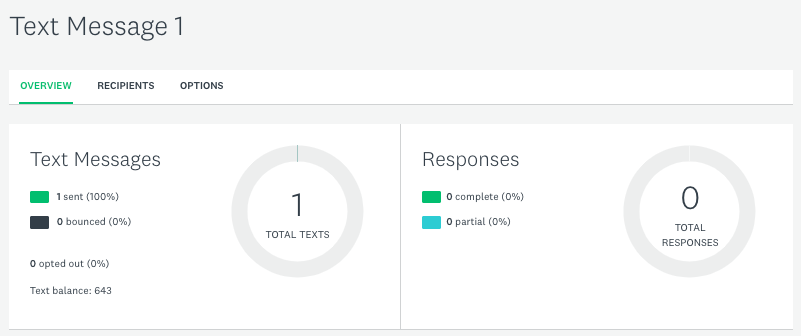
Track Responses and Recipients
See the number of texts you sent, whether any phone numbers bounced, and the number of responses received in the Overview tab.
You can see a list of recipients added to the collector and their individual response status from the Recipients tab. Select All recipients to filter recipients. If you want to edit recipient details, you can make edits in Contacts.
- Opted out or bounced phone numbers
- Delete recipients
Analyze Results
From the Analyze results section of your survey, you can browse, filter, and compare responses. You can filter by collector or custom data to narrow down responses.
If your contacts include custom data, you can see it in individual responses or in responses data exports, unless anonymous responses was turned on.
Team Settings
Allow People to Send Surveys by Text Message
By default, no one on the team has access to send surveys by text message. The Primary Admin controls whether people on your team can send surveys by text message. They also choose who can send surveys by text message—their entire team or only specific people.
If only specific people are allowed to send texts, the Primary Admin or Admin needs to turn on this setting for individuals from Manage users.
- Steps to Manage users
Team members with access can create Text Message collectors. If access is disabled later, the team member won't be able to send or create new Text Message collectors, but they can see their existing collectors.
Text Balance
The Text Balance is the shared number of text messages your team can send through the Text Message collector. You can see your team's Text Balance as you create your Text Message collector and in the collector Overview tab.
If you need to text your survey to more people than your Text Balance allows, contact your Primary Admin—they can work with their Customer Success Manager (CSM) to increase the text balance.
What Survey Takers Can Do
To take a survey, people can tap the web link in the text to open the survey in a mobile browser on their device.