SurveyMonkey
Ways to Send Your Survey
Once you've finished your edits and previewed your survey design, access an automatically created Web link by clicking the green Publish survey button. Alternatively, you can select Publish survey in the survey header. Publish survey is where you can create feedback collectors and launch your survey.
Any collectors created on your survey can be managed from your collector list.
Before you can send your survey, you need to verify your account email address.
Ways to Send Your Survey
SurveyMonkey offers multiple collector types to send your survey, whether you're surveying your own respondents or purchasing responses.
| Colliector type | Description |
| Web link/ QR code | A URL or QR code linking to your survey so you can send or post your survey anywhere you want. Social icons let you post your survey on Facebook, LinkedIn, X, Whats' App, or Microsoft Teams. |
| Email invitation | Send customized email invitations to your contacts through SurveyMonkey to track who responds and send follow-up emails. |
| Website | Embed your survey or show a pop-up invitation to your survey on your website. |
| Manual data entry | Input responses collected offline or add responses for someone without an internet connection. |
| Mobile SDK | Get a survey hash used by app developers to add surveys to iOS or Android apps. |
| Kiosk survey | Collect responses without an internet connection through the SurveyMonkey Anywhere app. |
| Text message | Text your contacts a link to your survey. Respondents can tap the link to take your survey in their mobile browser. |
| Target audience* | If you don’t have your own list of respondents to get the feedback you need, you can buy responses through SurveyMonkey Audience. |
*If you chose to purchase Audience responses when you initially created your survey, then you’ll automatically be prompted to set up a Target audience collector.
Using Multiple Collectors
You can create multiple collectors for any survey to get responses in various ways. Depending on your plan type, you may be limited to as few as 3 collectors per survey.
Note: If you're on a Basic plan and you've added paid features to your survey, you'll be prompted to Upgrade your account to send your survey as it’s designed. To send your survey without upgrading, you can click Paid features in the survey header to remove any paid features from the survey design, and then you can create a collector.
Responses from all collectors opened for a survey get stored in the Analyze Responses section of the survey. To view the responses from a specific collector, filter by collector. Or, compare by collector to see a side-by-side comparison of how people responded by collector.
Why are some collectors view only or greyed out?
If a collector is grayed out, it's disabled for your survey. This may be because your survey is accepting payments, the survey was shared and you don't have Collect permissions, or the collector is restricted by Enterprise settings.
Managing Your Collector Options
Collector options are settings that let you customize the respondent's survey-taking experience. They affect who can take your survey, how many times they can take the survey, what people see when they complete it, and whether the results are anonymous.
Each collector type has a different set of options to choose from—specific collector type article have additional details.
Managing Your Collector List
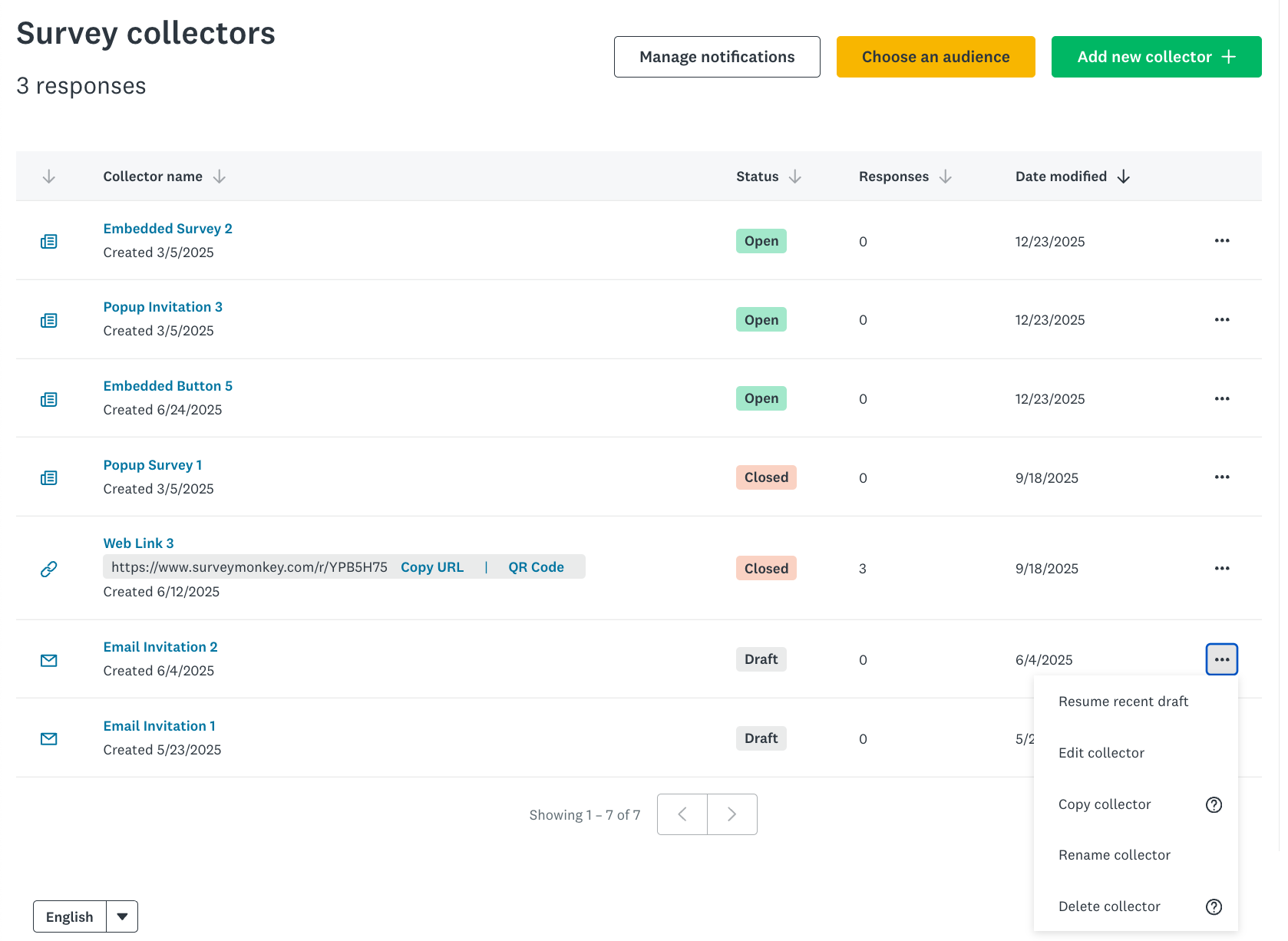
Once your survey has collectors created, your survey to view your collector list and manage your survey.
Click ... to the right of a collector to access these these collector action:
| Action | Description |
| Close collector | Close a collector to stop the survey from collecting further responses from that source. If a respondent tries to access the survey, they'll see a survey closed message. If you have multiple collectors for the same survey, you need to close each collector individually to completely stop the survey from collecting responses. |
| Open collector | Re-open a collector that was previously closed to accept new survey responses. |
| Copy collector | Copy a Web link or an Email invitation collector to share past surveys at a different time or with new respondents. Not all collector options are copied—you can review all settings before sending your survey. |
| Edit collector | Update your collector options and settings to control the survey-taking experience. |
| Rename collector | Change the nickname of the collector to help you stay organized. The collector name is private—people taking your survey can't see it. |
| Delete all responses | Permanently delete responses recorded by the collector. If the collector is open, you can continue to use the collector to collect new responses. |
| Delete collector | Permanently delete the collector from the survey. Before you can delete it, you need to delete all responses. If a respondent tries to access the survey, they'll see a message saying the URL may have changed or that the survey no longer exists. If you delete a collector with a Custom URL Ending, you may not be able to use it on a future collector. |
| Invite new recipients | Send an email invitation to new recipients or those who were added to the collector but not yet sent an invitation. |
| Resume recent draft | If you have an Email invitation drafted, Resume to edit your draft message or contact list. |