GetFeedback
Adding an Overlay Survey in Salesforce Communities
Add surveys to your Salesforce Communities and knowledge base to get feedback on your articles and resources. With a web overlay survey, you can add a button to take your survey on one or more pages of your Community. You can also track merge fields using the web overlay.
Setting up a Web Overlay Survey
To set up your web overlay survey:
- From the survey builder, select Distribute > Website > Web Overlay.
- Customize your web overlay settings.
- Select Save.
Adding the Survey to Your Community Builder
Paste the Javascript snippet for your survey into your Community. You need to perform extra steps if you’re adding the survey to a private community (if people must log in to access your site).
Copying the Survey Code
- In app.getfeedback.com, open your survey.
- From the survey builder, select Distribute > Website > Web Overlay.
- Scroll to the Install section and select Get snippet.
- Copy the Javascript snippet.
Adding the Survey to Your Community
- In the Salesforce Community builder, select Settings > Advanced.
- Select Edit Head Markup.
- Paste the Javascript snippet at the bottom of the markup.
Adding Surveys to Private Communities
If users need to log in to access your site, you’ll need to add a few more code snippets to the head markup.
Add code to hide the survey by default:
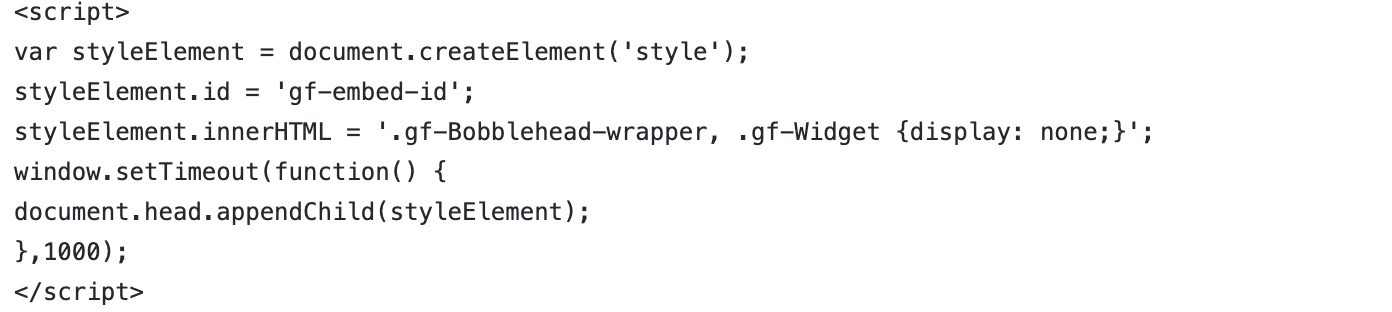
Add code to create a Visualforce page that checks if the survey should be shown:

Tracking Additional Information With Merge Fields
You can create a Visualforce page with any custom code needed to attach merge fields or trigger the survey based on a field value.
For example, the block of code below specifies merge fields to to track with survey responses:

Adding Trusted Sites
Manage additional security settings to make sure your survey displays correctly. You’ll need to:
- Add https://websites.cdn.getfeedback.com as a trusted site in your Community settings.
- Add https://getfeedback.force.com as a trusted site in Salesforce Setup.
Turning On Your Survey
When you’re ready to turn on your survey:
- In app.getfeedback.com, open your survey.
- Select Distribute > Website > Web Overlay.
- Under Enable, turn on the toggle.
- Under Appears On, choose where to display your survey, then enter your link.
- Select Save.
Learn more about turning your survey on or off