SurveyMonkey
Customizing Charts and Data Tables
Charts and data tables are automatically generated for all closed-ended survey questions, and for open-ended questions when Thematic Analysis is on.
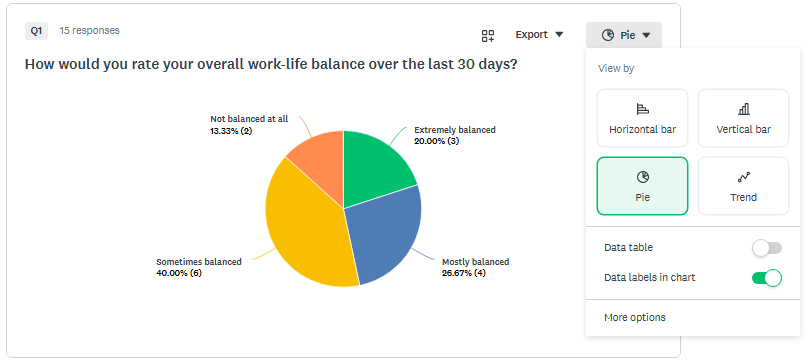
To customize your charts and data tables:
- From the Analyze results, go to the Question summaries tab.
- Click the visualization name dropdown at the top of the question, e.g., Horizontal bar or Gauge.
- Select from the Most common chart types and Display Options in the quick customization menu. Click More options to see all available customizations.
- Select an available Chart Type. You can choose one of several chart types for each of your questions. The chart types available depend on the question type.
- Explore the options under the Display Options, Colors, and Labels tabs, explained in detail below.
- Check Apply to all to apply changes to all charts and data tables. Some might not update because some options aren't available for certain question types.
- Click Save.
Display Options
Display options allow you to fine-tune the way your data displays in a chart or data table. The options available depend on both the question type and the chart type.
| Option | Description |
Chart, Data in Chart, Data Table | Use the checkboxes to show or hide the question chart, the data table that appears below the question, or the data values (response counts or percentages) on the chart itself. |
| Zero-Response Answer Choices | Hide any answer choices that received no responses. |
| Statistical Significance | Show statistically significant differences in the data table below the question chart. |
| Basic Statistics | Chart the percentage of responses or the absolute number of responses for each answer choice. |
| Axis Scale | Show either a chart legend or chart labels for pie or donut charts. Chart labels appear alongside the chart itself and a chart legend appears at the bottom of the chart. |
| Min and Max | Edit the minimum and maximum axis values for the chart. As you collect new responses, the min and max values may adjust—the min value cannot be greater than the lowest value in the chart and the max value cannot be lower than the highest value in the chart. |
| Depth | Chart the average or weighted average, or chart the distribution of answer choices. |
| Decimal Places | Choose between 0, 1, or 2 decimal places. |
| Labels | Show either a chart legend or chart labels for pie or donut charts. Chart labels appear alongside the chart itself and a chart legend appears at the bottom of a chart. |
| Swap Rows and Columns | Swap the rows and columns in the data table of Ranking, Matrix/Rating Scale, and Matrix of Dropdown Menus question when Depth is set as Distribution. |
Colors
You can customize chart colors for individual questions or apply a default color palette to your entire survey.
To edit chart colors:
- From Question summaries in Analyze results, click the visualization name dropdown at the top of a question, e.g., Horizontal bar or Gauge.
- Click More options, and select the color block to edit the color. You can choose from the color picker or enter your own hex codes.
- Drag and drop the color blocks into the order you want reflected in the chart itself. The first color in the row corresponds with the first answer choice in the data table.
- Check Apply to all to apply changes to all charts. Some might not update because some options aren't available for certain question types.
- Click Save.
Labels
You can edit labels directly in context. To edit a label, click the visualization name dropdown at the top of a question, click More options, and go to the Labels tab. You can also edit labels from the data table by clicking the “...” next to the answer choice header and selecting Edit this label.
- Editing labels doesn't affect the question text or answer choices in your survey design.
- You can restore the original label by clicking Revert to the right of a label in edit mode.
Global Settings
Save time by applying colors and data settings to your entire survey at once, instead of editing each chart one by one.
Appearance
Change the look of your charts and tables across your entire survey. The color settings available depend on question types.
To customize your survey appearance:
- Select Options from the top toolbar.
- From the Appearance tab, choose your color settings:
- Team colors: Apply your organization's shared color scheme for consistent branding. If you generated a theme while designing your survey, those AI-generated brand colors also appear here.
- Default color palettes: Apply a pre-set color scheme (such as Heritage or Monochrome colours) to all charts.
- Custom color palettes: Choose your own colors for your results. If you edit a Team palette, those colors will move to your Custom palette for further editing
Data Options
Control how your results are measured and displayed throughout your survey. The Data options available depend on both the question type and the chart type.
To use data options globally:
- Select Options from the top toolbar.
- From the right-hand menu, select Data options.
- Toggle the following on or off:
| Option | Description |
| Data table | Show or hide the data table that appears below the question charts. |
| Data labels in charts | Show the data values (e.g., response counts or percentages) directly on the charts. |
| Basic statistics | Show the minimum, maximum, mean, median, and standard deviation in a separate data table below the question chart. |
| Answer choices with no responses | Show or hide any answer choices that received no responses. |
| Statistical Significance | Show statistically significant differences in the data table below the question chart. This setting is only relevant when a Compare rule is applied. |
| Decimal Places | Choose between 0, 1, or 2 decimal places. |
| Response quality | Show or hide flags on poor-quality responses identified by machine learning. |
| Sentiment analysis | Show or hide sentiment categories that reveal the emotion behind what people are saying. |
| Thematic analysis | Show or hide key themes that summarize and group your survey’s text responses. |