SurveyMonkey
Question Types, Page Elements, and Survey Options
Start your survey from Home or Create survey from the header.
Once in the Design survey section, also called the full editor, select Build to add and edit questions and page elements in your survey.
The Build menu shows our most-used question types, when selected. To see and choose from all question types or page elements, select View more.
For more info on building your survey, check out adding questions and editing your survey.
Available Questions
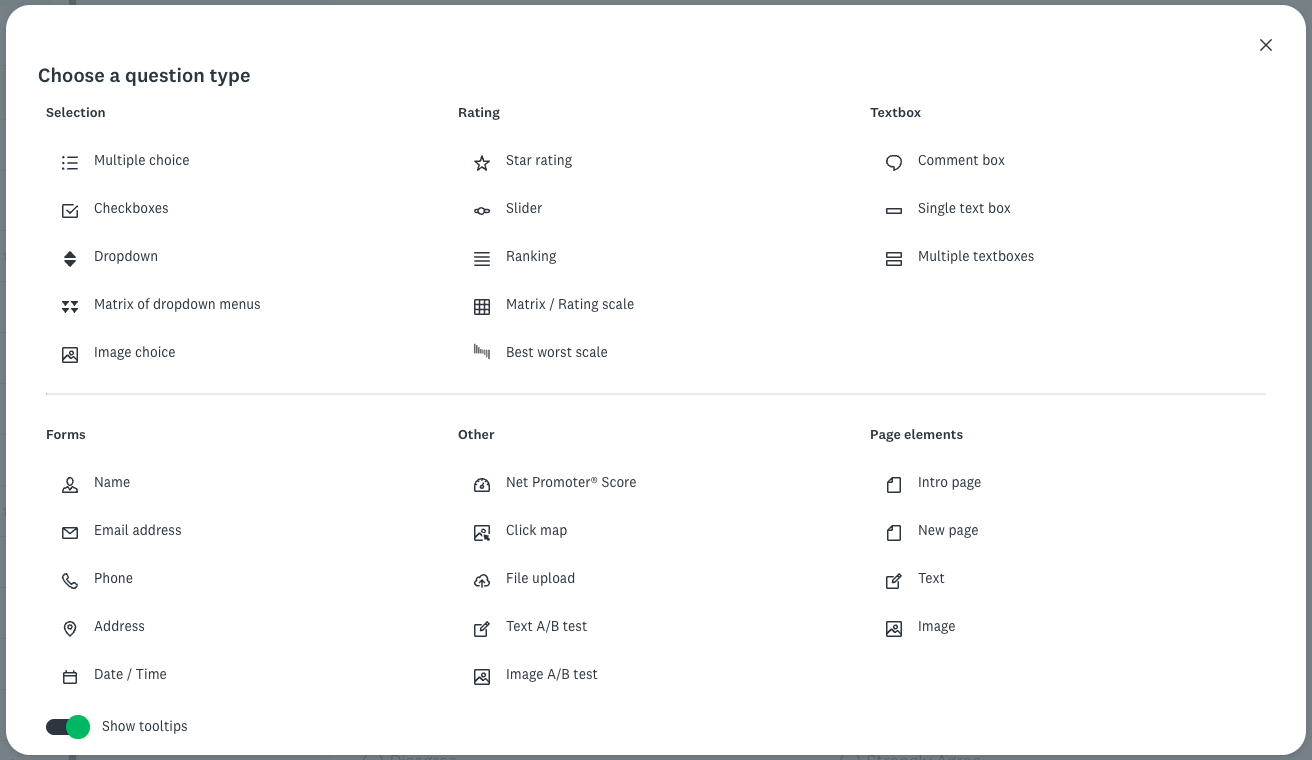
Selection Questions
| Question type | Description |
| Multiple choice | Let people choose a single answer from a list of answer choices. |
| Checkboxes | Let people choose multiple answers from a list of answer choices. |
| Dropdown | Answer choices display in a dropdown letting people select a single answer. Tip! This question’s great when you have a long list of answer options. |
| Matrix of dropdown menus | People can evaluate several items (rows) against a consistent set of criteria (columns), displayed in a matrix of dropdowns. |
| Image choice | People can select one or more image answers from your image answer choices. |
Rating Questions
| Question type | Description |
| Star rating | People can evaluate a statement using a visual scale of stars, hearts, thumbs, or smilies. |
| Slider | People can drag an interactive slider to rate an item or statement on a numerical scale. |
| Ranking | People rank a list of options in the order they prefer using numeric dropdown menus or drag-and-drop. |
| Matrix / rating scale | People can evaluate one or more items (rows) using the same set of column choices. The matrix question can collect only a single answer or multiple answers per row. You have the option to turn the matrix question into a rating scale if you choose to assign weights to answer choices. |
| Best worst scale | People can select the best and worst option from a list of items to find out what respondents value. |
Textbox Questions
| Question type | Description |
| Comment box | People can respond with a longer, open-ended answer. |
| Single textbox | People can respond with a short text or numerical answer. Validate the question to specify an answer length, or require and validate a number value, date format, or email address. |
| Multiple textboxes | Collect multiple short text or numerical answers with a single question. Validate the question to specify an answer length, or require and validate a number value, date format, or email address. |
Forms Questions
| Question type | Description |
| Name | People can enter a First name, Last name, Middle name, Title, and Suffix from a single question. |
| Email address | People can enter an email address. |
| Phone | People can enter phone numbers and extensions. |
| Address | People can enter a street address, city/town, state/province, zip/postal code, or country. |
| Date / time | People can enter a specific date and/or time. |
Other
| Question type | Description |
| Net promoter® score | People can measure their satisfaction with your organization, brand, product, or service. SurveyMonkey calculates NPS score automatically in Analyze Results. |
| Click map | Get feedback about an image by asking people to click on a part of your image. |
| File upload | People can attach a file with their survey response. |
| Text A/B test | Learn how people react to two or more different messages. Enter the text variables you want to compare, then specify the percentage of respondents who should see each message. |
| Image A/B test | Learn how people react to two or more different images. Provide the images to compare, then specify the percentage of respondents who should see each image. |
Use Pre-Written, Question Bank Questions
The Question bank tab offers a library of certified questions created by survey methodologists to minimize respondent bias. You can select questions from question bank.
Page Elements
In addition to question types, surveys have page elements which you can build with.
| Page element | Description |
| Intro page | People can add an intro page at the beginning of your survey briefly explaining the topic and purpose of the survey. Tip! Your introduction only needs to be three or four sentences, or a couple of short paragraphs at most. |
| New page | People can add another blank survey page to the end of your survey. |
| Text | People can add Text to provide extra context or description to your respondents. Tip! To create a consent form, add terms and conditions to your survey, add footers, and more. |
| Image | Insert an image into your survey by uploading an image file from your computer. |
Survey Options
The Options menu lets you adjust your survey experience and look by showing or hiding options.
Check the table below for details on survey options.
| Option | Description |
| Accept Payments | Respondents can make payments via PayPal or Stripe to your survey or form. You can assign prices to a single question to charge different prices, or charge a fixed price for your entire form. |
| Quiz | Quiz mode turns any survey into a quiz. Your can tell respondents whether they got the answer right or simply record scores directly in Analyze results. Your results show overall quiz score statistics and individual scores for each person that took the quiz. |
| Survey title | Titles should tell people what your survey’s about. You can format the title text, choose the title’s placement on the survey, or add a nickname to organize your surveys within SurveyMonkey. |
| Progress bar | Progress bars at the bottom of each survey page tell respondents how much of the survey they've finished and how much they still need to complete. |
| Page titles and descriptions | Page titles and descriptions let you chunk your survey into sections or provide helpful instructions to your respondents. |
| Page numbers | Page numbers can be shown or hidden. When shown, they’re by the Page title. |
| Question numbers | Question numbers can be shown or hidden. Choose whether to number questions across the entire survey or restart numbering on each survey page. |
| Required asterisks | equired asterisks are a visual indicator to respondents that a question’s required. If you hide required asterisks, respondents see an error message if they try to submit the survey without answering required questions. |
| Language | Create your survey in 57 supported survey languages. The default survey text—like navigation buttons and the survey end page—are translated automatically for you. You need to provide text for your survey title, questions, and answers. Your survey language is set by your account language, but you can update the language by survey. |