SurveyMonkey
Advanced Branching
Use Advanced branching to create personalized, multi-condition paths that show, hide, or skip pages and questions based on your respondent's responses.
How it Works
Advanced branching is logic based on Conditions and Actions. Conditions are things like a respondent's answers to a survey question, custom data from Contacts, custom variables, or survey language.
When the criteria defined in your conditions are met, the Action is triggered.
Actions can do things like:
- Skip respondents to a future point in your survey, either on the same-page, or to a future page.
- Show or hide questions
- Show or hide pages
- Invalidate questions and customize error messages
- Add unconditional skip logic to a page, so that everyone who reaches that page is skipped to a specific page later in the survey.
- Redirect a respondent to a URL after they complete all matching questions in the survey.
- Example for how you can use Advanced branching
Survey Requirements
Before adding Advanced branching rules, consider what data you can base conditions on, and what collector types you'll need to use for everything to work smoothly.
Data | Description | Compatible Collector Types |
| Questions | Any question type except Text, Image, Click map, Text A/B test, Question A/B test, and Image A/B test. For questions with multiple rows, you can specify the row you want to base your condition on. | All collector types |
| Contact data | The custom data about your respondents that's stored in Contacts. For example: Email, First Name, Last Name, Custom 1, etc. | Email invitation |
| Custom variables | The values of the custom variables in the survey URL. | Web link |
| Survey language | The language the respondent takes the survey in. | All collector types |
Adding Advanced Branching
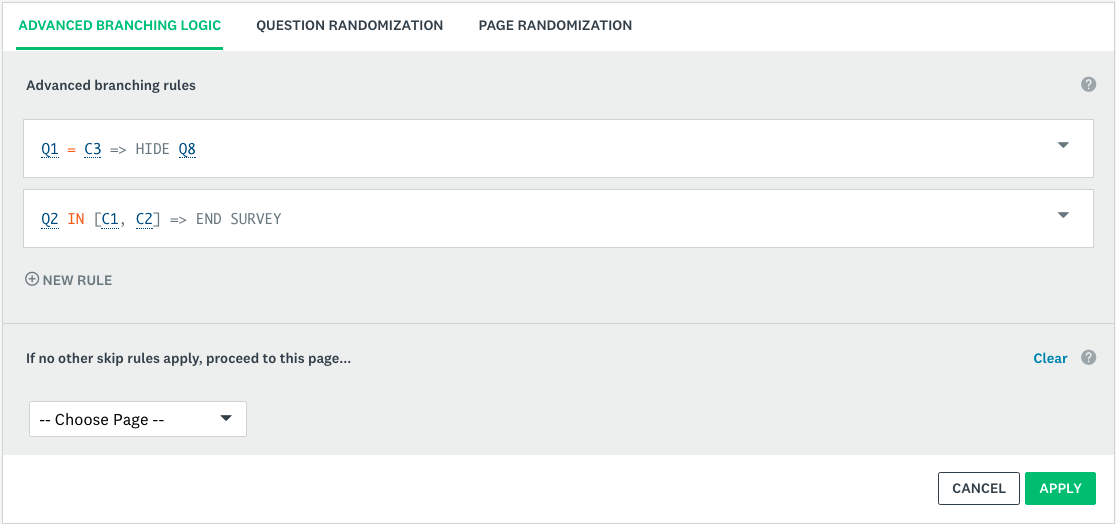
To add Advanced branching to your survey:
- In the Design Survey section, select the Logic tab.
- Select Advanced branching logic.
- Select the Page you want to add logic to and select Next.
- Click + New rule.
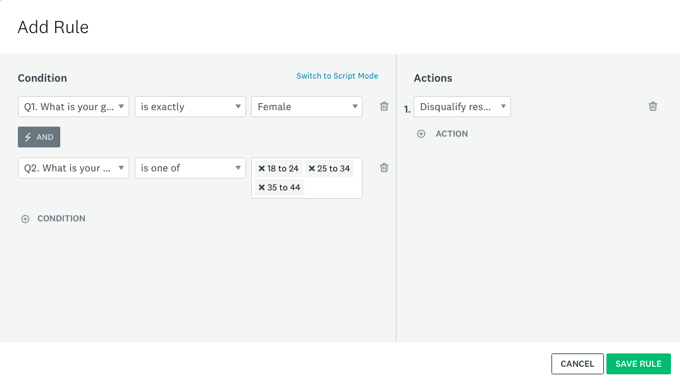
- Define the Conditions and Actions for your rule. You can add more rules after you save this one.
- Select Save Rule.
- Select Apply.
Your rule you applied is shown as a coded script. Hover over the script to see what each coded piece means.
If you want to add additional rules to your page, select + New rule again. Check out the types of rules, order of rules and conflicts when adding multiple rules to a page or full survey.
Same-page Logic
You can add Same-page logic to your survey from the Advanced branching rule builder.
Set up your conditions and actions to either the Show question or Hide question. Same-page logic seamlessly adapts in real-time, as a respondent answers prompts respondents with the appropriate follow-up questions, on the same-page, in real time, potentially limiting the number of page breaks and eliminating unnecessary respondent clicks.
Same-page logic reduces page breaks, so survey takers only see questions relevant to them.
- Steps to add Same-page Logic to Your Survey
- Same-page logic limitations
- Preview Your Same-page Logic
Using Multiple Rules
- Types of Rules
- Order of Rules and Conflicts
- Using Advanced Branching with Question Skip Logic
Conditions and Actions
Rules are built like logical sentences based on questions in your survey or information about your respondents. Every rule is made up of two parts—a condition and an action.
You can build rules based on the following subjects. Keep in mind that some subjects will only work when you use a certain collector type to send your survey.
- Conditions
- Actions
Managing Existing Rules
To view or edit an existing rule:
- In the Design Survey section, select the Logic tab.
- Select Advanced branching logic.
- Select the page you want to add logic to and select Next.
- The Advanced branching logic tab opens at the top of the selected page.
- View or edit the rules. You can hover over the script to see what each coded piece means.
- Select the down arrow to the right of any existing rule to edit, duplicate, move up, move down, disable or delete a rule.
You can't copy or move rules to another page in the survey. You need to re-build the rules on the new survey page.
Previewing and Testing Rules
The best way to test Advanced branching depends on the subjects you based your rules on.
When you Preview a survey, use the Survey overview panel to validate your Advanced branching rules alongside your survey preview. Testing is the best way to make sure your logic flows are set up properly.
- Testing Rules Based on Questions
- Testing Rules Based on Custom Data from Contacts
- Testing Rules Based on Custom Variables
- Testing Rules Based on Survey Language
Analyzing Your Results
Your results in the Analyze Results section will look the same as any normal survey. If a respondent was skipped past a question or page due to a branching action, or if a question was hidden from a respondent, the questions they didn't see are marked as skipped in the Analyze Results section.
There's no way to view or export the logic path that a particular respondent took through your survey.
Frequently Asked Questions (FAQ)
- Will my rules update if I delete or add more questions and pages?
- Are values case sensitive?
- What's the difference between Advanced Branching and Question Skip Logic?